
Quick answer: Canva AI is useful when you start with a clear thumbnail idea, keep text short, improve contrast, and test whether the design is readable on mobile.
- Use 3-5 words on a thumbnail, not a full sentence.
- Make the subject, contrast, and emotion visible at small size.
- Export clean JPG/PNG files and compress them before uploading.
Real thumbnail example
For a video about ChatGPT prompts, use one face or tool visual, a bold phrase like 'Better Prompts', one accent color, and a simple background with enough empty space.
Canva AI is the main focus of this guide for 2026. This article explains the topic in simple English, gives practical steps, and helps beginners take action without fake promises or confusing technical language.
Canva AI helps beginners create cleaner YouTube thumbnails, social media posts, banners, and simple marketing designs without advanced design software. It is useful for students, creators, freelancers, and small business owners.
This guide explains how to use Canva AI for design ideas, layout improvement, text placement, color choices, and client-ready files in 2026.
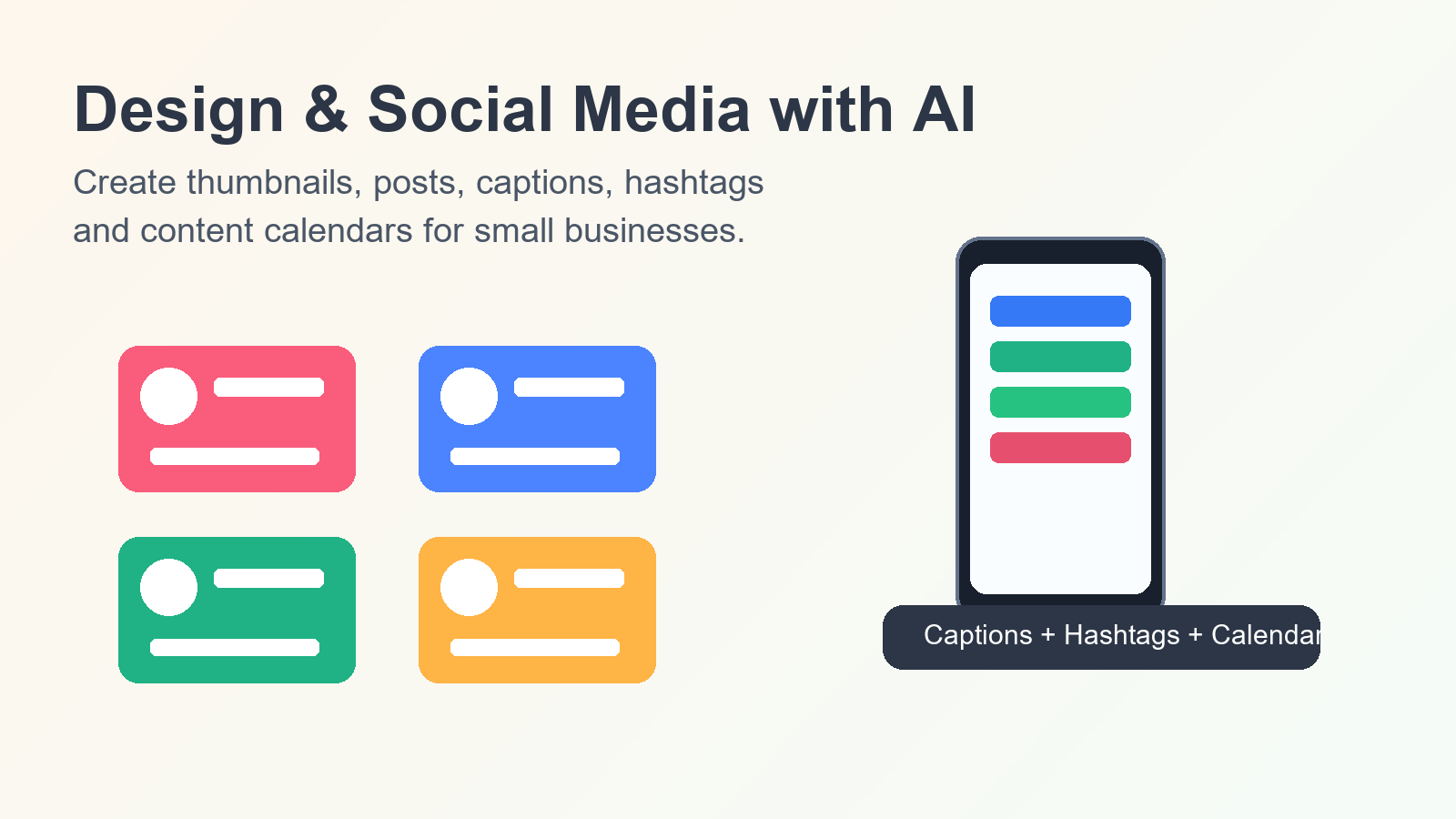
Table of Contents
- Quick overview for beginners
- Step-by-step workflow
- Tools, examples, and mistakes to avoid
- Final checklist and next guide
Canva AI overview for beginners
Canva AI combines design templates with AI-powered writing, image, and layout features. Beginners can start with a template and then improve it with better text, spacing, colors, and visual balance.
The best Canva AI workflow is not about clicking random templates. It is about understanding the platform, the audience, the message, and the final file size.
Why Canva AI matters in 2026
YouTube thumbnails and social media posts need to be readable quickly. A viewer may decide in one second whether to click or scroll.
Canva AI can speed up brainstorming, but the final design still needs human review. Text should be short, contrast should be strong, and the main subject should be clear on mobile.
Canva AI step-by-step workflow
Use this workflow to create better visuals with Canva AI.
- Define the platform first: YouTube, Instagram, Facebook, LinkedIn, or Pinterest.
- Choose the correct size and start with a clean template.
- Use Canva AI for headline ideas, image suggestions, and layout inspiration.
- Edit manually for readability, brand colors, spacing, and mobile view.
- Export the design in the right format and save an editable copy for future changes.
Canva AI becomes more useful when the beginner follows one workflow at a time instead of jumping between too many tools or ideas.
Best practical examples
These examples show how Canva AI can be used in real beginner workflows.
YouTube thumbnail workflow
Use Canva AI to create headline ideas, then choose one short title with strong contrast. Keep the face, product, or main object large enough to see on mobile.
Social media post workflow
Start with one message, one image, and one call to action. Canva AI can help you create captions, but the visual should stay clean and readable.
Client portfolio workflow
Create three sample designs for one niche, such as fitness, education, or tech. This makes your Canva AI portfolio look focused instead of random.
Common mistakes to avoid
Canva makes design easier, but beginners still need good judgment. Avoid these mistakes.
- Using too much text on a thumbnail.
- Choosing colors that look nice but are hard to read.
- Using the same template for every client or platform.
- Exporting low-quality files for professional use.
- Promising guaranteed views, clicks, or viral results.
Checklist before you move forward
Use this simple checklist before publishing work, sending a client file, or applying the method from this guide.
- The main goal is clear in the first paragraph.
- The final output is useful for a real reader, buyer, student, or client.
- The content has examples, not only general advice.
- The text sounds natural and does not repeat the same phrase in every sentence.
- The final work has been checked manually before publishing.
Beginner practice plan
A beginner should not try to master everything in one day. Start with one small task, complete it carefully, and then compare the result with a better example. This habit builds confidence because you are not only reading advice; you are producing something useful.
For the first week, choose one simple project and repeat the workflow three times. The first attempt may feel slow, but the second and third attempts usually become clearer. Save every finished sample because small samples can later become portfolio proof, study notes, or client examples.
Quality review method
Before you publish or deliver anything, read it like a real user. Ask whether the opening is clear, whether the examples are practical, and whether the final result solves the original problem. If a sentence sounds robotic, rewrite it in plain English.
Quality also means being honest. Do not promise guaranteed income, ranking, grades, views, or sales. A helpful article, design, study workflow, or freelance service should explain benefits and limits together. This makes the content more trustworthy for readers and better for AdSense review.
How to keep improving
Keep a small checklist for every new piece of work. Note what went well, what looked weak, and what you will improve next time. This simple review process is more powerful than adding random tools because it improves your judgment.
After a few practice rounds, update your old samples. Improve headings, remove repeated wording, add clearer examples, and make internal links more useful. A website grows faster when each page keeps getting cleaner, more helpful, and easier to read.
Helpful tools and references
Canva AI is useful with Canva templates, brand kits, background remover, Magic Write, image editing tools, and simple export settings.
You can also check Canva for official information related to this topic.
Related guides on Smart AI Tips Hup
Continue learning with these related guides. These internal links help readers move naturally from one beginner topic to the next.
- Fiverr AI Services Beginners Can Sell in 2026
- AI Freelancing in Pakistan: Complete Beginner Roadmap 2026
- Best AI Tools for Pakistani Students in 2026
Final advice
A good Canva design is clear before it is fancy. Use Canva AI to move faster, then use your eye to make the final design simple, readable, and useful.
Canva AI should be used as a practical skill-building method, not a shortcut. Start small, practice with real examples, review your results, and improve one step at a time.
Action step: choose one small task from this guide today, complete it carefully, and save the result as a sample for future learning or client work.
FAQ
Is this good for complete beginners?
Yes. Canva AI is beginner friendly when you start with simple tasks, realistic expectations, and manual review.
Can this guarantee income, ranking, or results?
No. It can improve your workflow and skill level, but results depend on practice, quality, consistency, competition, and user trust.
How often should I update my method?
Review your workflow every month because AI tools, freelancing platforms, content trends, and study habits can change quickly.
For a reliable general reference, review Google Search Central helpful content guidance and apply it carefully to Canva AI examples.
Canva AI Practical Checklist for 2026
Canva AI works best when a beginner follows a clear checklist: understand the goal, choose the right tool, create a simple workflow, review the result, and improve the final output before publishing or sending it to a client.
Why Canva AI matters for beginners
Canva AI matters because it helps beginners save time, avoid random effort, and build useful examples that can support study, freelancing, blogging, content creation, or online earning.
How to practice Canva AI
The best way to practice Canva AI is to complete one small task every day, save before-and-after examples, and write down what changed after review.
Common Canva AI mistake
A common Canva AI mistake is copying AI output without checking facts, tone, formatting, and reader value. Always add your own context and final judgment.
Canva AI action steps
- Use Canva AI with a clear goal and audience.
- Review Canva AI output for accuracy and usefulness.
- Save your best Canva AI examples for future portfolio or blog updates.
Useful Smart AI Tips Hup Pages
Explore more practical AI tutorials on the Smart AI Tips Hup Blog. For trust and transparency, you can also read our Accessibility Statement, Privacy Policy, Disclaimer, Contact Us, and About Us pages.
Canva AI Thumbnail FAQs
Is Canva AI good for YouTube thumbnails?
Yes, it is useful for ideas, layouts, backgrounds, and quick variations, but the final thumbnail still needs human editing.
How much text should I add?
Use a short phrase of 3-5 words so the thumbnail stays readable on mobile.
What size should I export?
Use YouTube's standard thumbnail size, then compress the image so it loads quickly.
Can I use the same image on every post?
No. Each important post or video should have a specific visual that matches the topic.
Related guide: If you create short videos, also read this AI video editing tools workflow for YouTube Shorts, Reels and TikTok to improve captions, scripts, thumbnails, and editing speed.
Pingback: AI Tools for Pakistani Students: Best Study Guide 2026
Pingback: AI Video Editing Tools 2026: YouTube Shorts, Reels and TikTok Workflow